Managing Duplicate Notifications From a Creator Active on Multiple Social Platforms
Why One Creator Can Send You the Same Notification Several Times
When a creator is active on Instagram, YouTube, X (formerly Twitter), TikTok, and a newsletter all at once, each platform generally runs its own separate notification system. If you follow the same account across several of these, a single announcement — a new video upload, or a live stream starting — can trigger a separate alert from each platform individually. The result is a stack of near-identical notifications arriving at different times, largely depending on each service's own push delivery schedule.
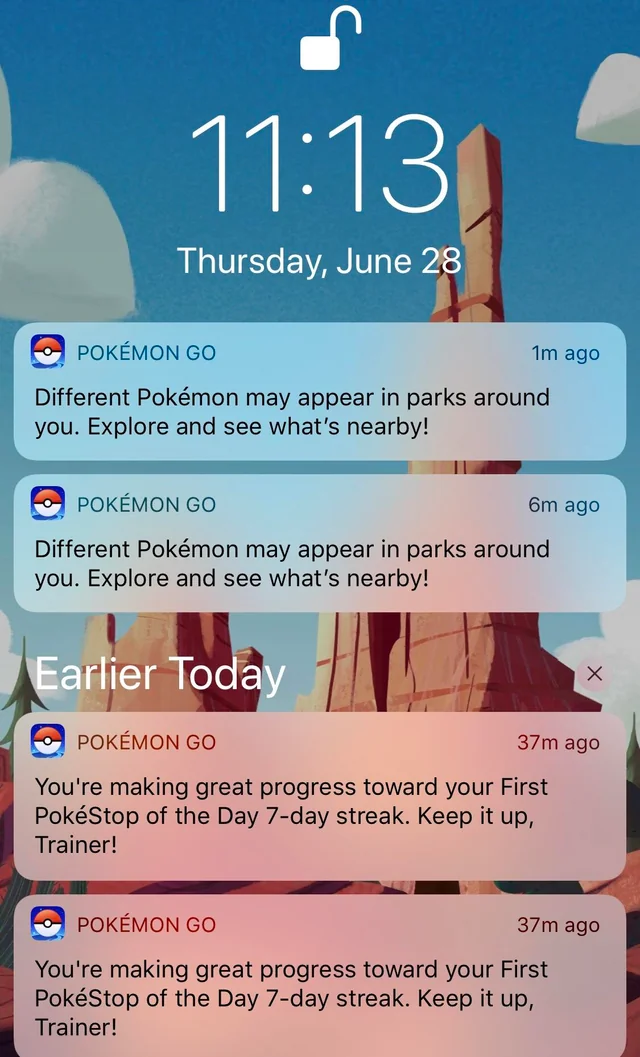
It's worth knowing this is partly a structural limitation rather than something any single app is doing wrong: your phone's operating system can generally group multiple notifications from the same app together, but it typically can't merge a YouTube alert and an Instagram alert about the same underlying event, since as far as your device is concerned, those are two unrelated apps sending two unrelated messages. Another common cause layered on top of this is that creators themselves often post a teaser on one platform, a full announcement on another, and a reminder on a third as part of a deliberate promotion strategy — your phone or browser then treats each of these as a genuinely distinct event, because from a technical standpoint, they are. Recognizing that the duplication generally comes from this multi-platform strategy, rather than a technical glitch on your end, makes it easier to decide which alerts to keep and which to quiet down.
Checking Which Platform Alerts Are Actually Useful to You
Start by opening your notification history on your phone or desktop and looking for the platform that consistently delivers the information you actually need first. For example, if a creator tends to post new video links to a YouTube community tab before sending an email, keeping YouTube notifications on may be enough on its own. If a newsletter tends to include behind-the-scenes detail the social posts skip, that platform might be the one worth prioritizing instead.
After identifying the most useful source for your own habits, turning off notifications for that same creator on the other platforms is a reasonable next step. On Instagram, you can generally mute a specific account's posts and stories without unfollowing them. On X, you can typically disable alerts for that account's posts while still seeing them appear in your timeline. The general goal is keeping just the one channel that matches your preferred timing and content depth, and letting the rest stay quiet.
Using Platform-Specific Mute and Filter Settings Correctly
Each app tends to have its own menu path for muting a single account, and these menus shift periodically as apps update, so treat the following as a general starting point rather than an exact, permanent guide. On Instagram, this is generally found by visiting the creator's profile, tapping the "Following" button, and selecting "Mute," where you can typically choose to mute posts, stories, or both, without the creator being notified either way. On YouTube, tapping the bell icon next to the Subscribe button and selecting "None" generally stops push alerts while keeping you subscribed. On X, opening the creator's profile and tapping the bell icon usually lets you disable notifications for replies, reposts, and new posts specifically.
For newsletters, looking for a "Manage preferences" link at the bottom of an email, rather than immediately unsubscribing, is generally worth trying first. Many newsletter tools let you reduce frequency or select only certain topics rather than an all-or-nothing choice. This way, you can often keep some access to the creator's email updates while cutting the daily or weekly volume that ends up repeating what you already saw on social media. Testing the setting by waiting for the next announcement is a reasonable way to confirm a change actually took effect, since these settings don't always behave exactly as their labels suggest.
What to Do When a Creator Cross-Posts the Same Content Repeatedly
Some creators repost the same image or video across every platform with identical captions. If you're seeing the same post three times over, it's worth deciding whether you actually want the separate engagement features of each platform, or just the content itself once. If it's just the content you're after, picking the one platform where you prefer to like, comment, or save, and muting the creator elsewhere, is a reasonable approach.
If the duplication bothers you but you still want to support the creator overall, following only their primary platform and unfollowing the secondary accounts is worth considering. Many creators link to their other profiles in their bio, so exclusive content on those other platforms generally remains reachable whenever you choose to check, without needing an active follow generating notifications the rest of the time.
FAQ
Question: Will muting a creator on one platform notify them that I muted them?
Answer: No, muting a creator on Instagram, YouTube, or X does not send any alert to the creator. The mute is private and only affects the notifications your device receives. The creator will still see your follow status and your likes or comments on their posts.
Question: If I turn off notifications for a creator on Instagram, will I still see their posts in my feed?
Answer: Yes, muting notifications on Instagram only stops push alerts and badge counts. Their posts and stories will still appear in your main feed and story tray. To hide their posts from your feed entirely, you would need to unfollow or use the mute option for posts, which hides their content from your home screen.
Question: How do I stop duplicate email notifications from a creator who sends the same update to their newsletter and social media?
Answer: Opening the most recent newsletter email and scrolling to the footer usually reveals a "Manage preferences" or "Update your email settings" link. Looking for a frequency option, such as a weekly digest or only major announcements, is worth trying there. If no preference link exists at all, unsubscribing and relying on whichever social platform delivers updates fastest for you is a reasonable fallback.